Lenovo BIOS - UEFI Firmware Update
When you are a GNU/Linux user, it is common to run into several obstacles when trying to update or apply security patches to the BIOS - UEFI firmware. Many companies only provide update methods with executables that only work on Windows. Although some methods offer binaries in .iso, .cap or .cab files, or updates that can be stored on USB storage devices, this task is not easy for a user without much experience.
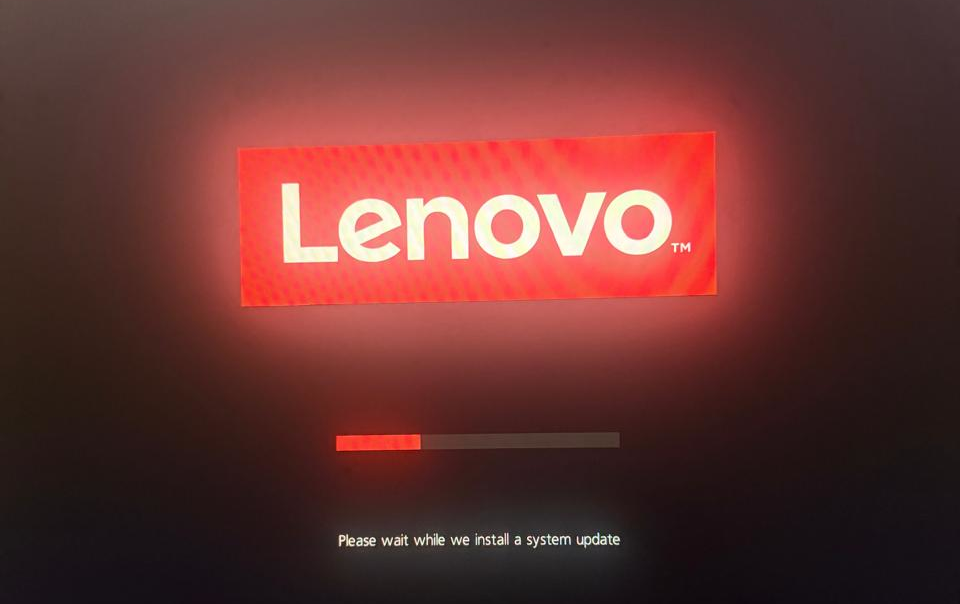
Some brands such as Lenovo rely on the well-known LVFS (Linux Vendor Firmware Service), a secure web portal that allows hardware manufacturers to upload firmware updates for machines running GNU/Linux operating systems.
For the examples that follow I used a Lenovo ThinkPad Carbon X1 laptop, with the following specifications:
- Operating System: Debian 13, Trixie
- Architecture: AMD64, 64 bits
- Desktop Environment: XFCE4, version 4.20
The utility used is fwupdmgr, which comes in the official Debian repositories.
Utility installation
1sudo apt install -y fwupd
After installation, these two commands become available:
- fwupdmgr: Automatically downloads updates from LVFS.
- fwupdtool: A more advanced management utility that runs as administrator, used for debugging or direct local installations of .cap or .cab files.
Standard and safe update (Recommended)
1fwupdmgr refresh
Check for available updates
1fwupdmgr get-updates
Download and install the firmware updates
1sudo fwupdmgr update
With these steps you can keep your BIOS/UEFI firmware up to date. If you need to run the update from .cap or .cab files, it should be something similar to this:
Get the ID of your System Firmware:
1fwupdmgr get-devices
(Look for the GUID or Device ID corresponding to System Firmware in the command output). Install the firmware file locally:
1sudo fwupdtool install-blob /path/to/file.cap <DEVICE-ID>
(Replace /path/to/file.cap with the location of your file and the ID of your firmware DEVICE-ID).
Remember that in some cases, to apply changes you need to run the command as sudo for it to work correctly.
Visual alternatives
When I was a Gnome user, updates ran automatically; the tool used was gnome-firmware. With XFCE4 I prefer to run them from the terminal whenever it is necessary.